
- ✔ Verified by VirusTotal
- ✔ 100% Original Product & Virus-Free
- ✔ Lifetime Free Updates on Single Purchase
- ✔ Unlimited Website Usage
- ✔ Prices in USD (Tax Included)
🔥 Limited-Time Deal — Ends Soon!
WooCommerce Availability Scheduler 12.4
$25.00 Original price was: $25.00.$2.99Current price is: $2.99.
Instant Access
7 Day Money Back Guarantee
Online Support 24/7
Secure Payment
Description
WooCommerce Availability Scheduler – Smart Product Scheduling for WooCommerce
The WooCommerce Availability Scheduler (WCAS) is the ultimate solution for managing product availability in your WooCommerce store. With this plugin, you can schedule when your products are available for purchase, display countdown timers, and even hide or show products automatically based on your rules. Perfect for stores running flash sales, restaurants, limited-time offers, or daily deal shops.
Why Choose WooCommerce Availability Scheduler?
Managing product availability manually can be time-consuming. WCAS automates the process by letting you:
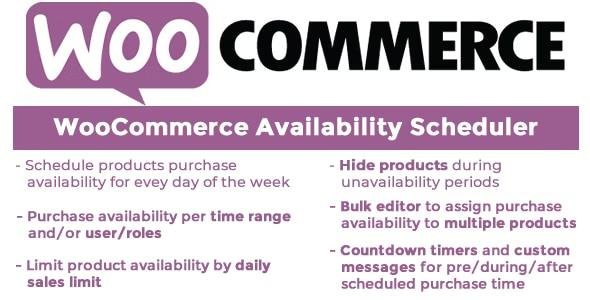
Schedule product availability by day and time range
Restrict availability based on user roles
Automatically hide or disable “Add to Cart” buttons during unavailability
Show custom messages and countdown timers to create urgency
Limit products by daily sales quota with progress bar display
This helps you save time, prevent overselling, and improve customer experience.
Key Features of WooCommerce Availability Scheduler
🕒 Flexible Scheduling
Easily set product availability for each day of the week (Monday to Sunday) and define one or more time ranges. Products will automatically become available or unavailable based on your schedule.
Control who can buy specific products by assigning availability rules based on user roles. Great for wholesale, B2B stores, or membership sites.
Display engaging countdown timers on product and shop pages to show when products will be available or when they expire. You can also set an expiration date-time to automatically hide products.
Set a maximum number of sales allowed per day. Once the limit is reached, products will automatically be hidden or disabled. A customizable progress bar can be displayed to inform customers.
Use built-in shortcodes like [was_start_time] and [was_end_time] to show product availability times. You can also display custom messages on product and shop pages.
⚡ Bulk Edit Options
Manage multiple products at once with the Bulk Availability Scheduler, saving you hours of manual work.
Benefits of Using WooCommerce Availability Scheduler
Automate availability and reduce manual updates
Boost conversions with countdown timers and urgency tactics
Prevent overselling by limiting daily sales
Personalize shopping experience with custom messages and user role restrictions
Improve store management with easy bulk editing
Final Thoughts
The WooCommerce Availability Scheduler plugin is a must-have tool for any WooCommerce store that sells time-sensitive products or wants to create urgency-driven campaigns. Whether you’re running a flash sale, managing restaurant delivery times, or limiting daily deals, this plugin gives you complete control over product availability with ease.
🚀 Take your WooCommerce store to the next level with WooCommerce Availability Scheduler GPL and start managing availability like a pro!
Be the first to review “WooCommerce Availability Scheduler 12.4” Cancel reply
How to Install
Follow these quick steps to install from a .zip file or directly from your WP dashboard.
-
1
Go to Plugins → Add New
In your WordPress dashboard, open Plugins and click Add New.
-
2
Click Upload Plugin
Press Upload Plugin → Choose File and select the downloaded
plugin-name.zip. -
3
Install & Activate
Click Install Now, then Activate. You’re done!
-
4
(Optional) Enter License / Use Shortcode
Open Plugins → Your Plugin → Settings to enter your license. Add the box on the product page with:
[plugin_info_box]
Alternative: Install from WordPress directory
Go to Plugins → Add New, search the plugin name, click Install then Activate.
Manual (FTP) method
Unzip locally → upload the folder to /wp-content/plugins/ using FTP → activate from Plugins.
-
1
Go to Appearance → Themes
Click Add New → Upload Theme.
-
2
Upload the .zip file
Select
theme-name.zip, click Install Now, then Activate. -
3
Install Required Plugins
If prompted, click Begin installing plugins and activate them.
-
4
(Optional) Import Starter Content
Use the theme’s Demo Import (if provided) to load sample pages and settings.
Manual (FTP) theme install
Unzip the theme → upload to /wp-content/themes/ → activate from Appearance → Themes.




Reviews
There are no reviews yet.