
- ✔ Verified by VirusTotal
- ✔ 100% Original Product & Virus-Free
- ✔ Lifetime Free Updates on Single Purchase
- ✔ Unlimited Website Usage
- ✔ Prices in USD (Tax Included)
🔥 Limited-Time Deal — Ends Soon!
WooCommerce Multi Locations Inventory Management 4.2.7
$99.00 Original price was: $99.00.$2.99Current price is: $2.99.
Instant Access
7 Day Money Back Guarantee
Online Support 24/7
Secure Payment
Description
WooCommerce Multi Locations Inventory Management 4.2.7
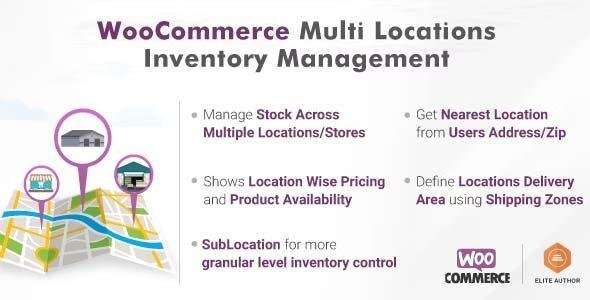
WooCommerce Multi Locations Inventory Management is a robust plugin that allows WooCommerce store owners to manage inventory across multiple locations, warehouses, or stores. Perfect for businesses operating in multiple physical locations or handling complex stock distribution, this plugin gives you full control over inventory tracking, stock allocation, and product availability by location.
🎯 WooCommerce Multi Key Features
Multi-Location Inventory Control
Manage inventory for multiple warehouses, stores, or locations from a single WooCommerce store.
Assign products to one or more locations with location-specific stock levels.
Track inventory independently for each location.
Stock Management & Allocation
Automatically reduce stock from the correct location when orders are placed.
Option to set priority locations for stock deduction.
Backorder management per location to handle low or out-of-stock items.
Location-Based Product Availability
Display product availability per location on the product page.
Show stock quantities or “in-stock/out-of-stock” status per location.
Control which locations are available for shipping or pickup.
Order & Shipment Management
Assign orders to a specific location or warehouse based on stock availability or shipping preference.
Generate location-wise order reports for easy fulfillment.
Integrates with WooCommerce shipping and pickup options to ensure accurate stock deduction.
Inventory Insights & Reports
Detailed location-wise stock reports.
Quickly identify low-stock or overstock items at each location.
Export inventory data per location for analysis.
Compatibility & Ease of Use
Works seamlessly with WooCommerce core and popular WooCommerce extensions.
Compatible with variable products, simple products, and grouped products.
Fully GPL-distributed, secure, and easy to set up.
🚀 Benefits
Optimize stock management – avoid overstocking or stockouts at specific locations.
Improve order fulfillment – assign orders to the correct location automatically.
Enhance customer experience – show accurate stock information based on customer location.
Save time – manage all warehouses or locations from a single WooCommerce dashboard.
Scalable solution – ideal for multi-store, multi-warehouse, or franchise operations.
📌 Summary
WooCommerce Multi Locations Inventory Management 4.2.7 is the ultimate solution for store owners who need precise control over inventory across multiple locations, improve order fulfillment efficiency, and provide real-time stock information to customers.
Be the first to review “WooCommerce Multi Locations Inventory Management 4.2.7” Cancel reply
How to Install
Follow these quick steps to install from a .zip file or directly from your WP dashboard.
-
1
Go to Plugins → Add New
In your WordPress dashboard, open Plugins and click Add New.
-
2
Click Upload Plugin
Press Upload Plugin → Choose File and select the downloaded
plugin-name.zip. -
3
Install & Activate
Click Install Now, then Activate. You’re done!
-
4
(Optional) Enter License / Use Shortcode
Open Plugins → Your Plugin → Settings to enter your license. Add the box on the product page with:
[plugin_info_box]
Alternative: Install from WordPress directory
Go to Plugins → Add New, search the plugin name, click Install then Activate.
Manual (FTP) method
Unzip locally → upload the folder to /wp-content/plugins/ using FTP → activate from Plugins.
-
1
Go to Appearance → Themes
Click Add New → Upload Theme.
-
2
Upload the .zip file
Select
theme-name.zip, click Install Now, then Activate. -
3
Install Required Plugins
If prompted, click Begin installing plugins and activate them.
-
4
(Optional) Import Starter Content
Use the theme’s Demo Import (if provided) to load sample pages and settings.
Manual (FTP) theme install
Unzip the theme → upload to /wp-content/themes/ → activate from Appearance → Themes.




Reviews
There are no reviews yet.